---
updatedAt: 2026-03-09T14:43:10.000Z
agentTools:
  projectIndex: https://developer.liveswitch.com/llms.txt
---

# JobNimbus

By LiveSwitch

# Description

The LiveSwitch platform integration with JobNimbus allows LiveSwitch customers who use JobNimbus to manage jobs and contacts to:

* Keep JobNimbus jobs and LiveSwitch projects in sync
* Add photos, recordings, and documents in LiveSwitch and view them back in JobNimbus
* Open LiveSwitch Contact and Project pages directly from JobNimbus notes

<Embed typeOfEmbed="youtube" url="https://www.youtube.com/watch?v=f6JKD8LdEWY" html="%3Ciframe%20class%3D%22embedly-embed%22%20src%3D%22%2F%2Fcdn.embedly.com%2Fwidgets%2Fmedia.html%3Furl%3Dhttps%253A%252F%252Fwww.youtube.com%252Fwatch%253Fv%253Df6JKD8LdEWY%26type%3Dtext%252Fhtml%26schema%3Dyoutube%26display_name%3DYouTube%26src%3Dhttps%253A%252F%252Fwww.youtube.com%252Fembed%252Ff6JKD8LdEWY%253Ffeature%253Doembed%22%20width%3D%22854%22%20height%3D%22480%22%20scrolling%3D%22no%22%20title%3D%22YouTube%20embed%22%20frameborder%3D%220%22%20allow%3D%22autoplay%3B%20fullscreen%3B%20encrypted-media%3B%20picture-in-picture%3B%22%20allowfullscreen%3D%22true%22%3E%3C%2Fiframe%3E" href="https://www.youtube.com/watch?v=f6JKD8LdEWY" providerUrl="https://www.youtube.com/" providerName="YouTube" />

<br />

[Install the JobNimbus Integration](https://app.contact.liveswitch.com/apps)

***

# Features & Functionality

**Sync JobNimbus Jobs with LiveSwitch Projects**

When you create and save a job in JobNimbus, LiveSwitch automatically creates a matching project and adds a LiveSwitch Project link to the job’s notes. The project is ready to store photos, recordings, and documents tied to the job for easy access and organization.

Contacts are also synced between JobNimbus and LiveSwitch, keeping customer details up to date across both platforms

<Image align="center" src="https://files.readme.io/f30e331fe00101e7ffdab70779cf12c7db062c567f30ac92c244a1907e6fc2bb-Project_Sync.png" />

**Jump directly to LiveSwitch contacts and projects from JobNimbus**

LiveSwitch automatically adds links in JobNimbus so your team can jump straight into LiveSwitch:
Contact notes include a “LiveSwitch Contact Record” link to view that contact in LiveSwitch, along with any related sessions and projects

Job notes include a “LiveSwitch Project” link to the matching LiveSwitch project

<Embed typeOfEmbed="youtube" url="https://www.youtube.com/watch?v=AQFd938PM-Q" html="%3Ciframe%20class%3D%22embedly-embed%22%20src%3D%22%2F%2Fcdn.embedly.com%2Fwidgets%2Fmedia.html%3Fsrc%3Dhttps%253A%252F%252Fwww.youtube.com%252Fembed%252FAQFd938PM-Q%253Ffeature%253Doembed%26display_name%3DYouTube%26url%3Dhttps%253A%252F%252Fwww.youtube.com%252Fwatch%253Fv%253DAQFd938PM-Q%26image%3Dhttps%253A%252F%252Fi.ytimg.com%252Fvi%252FAQFd938PM-Q%252Fhqdefault.jpg%26type%3Dtext%252Fhtml%26schema%3Dyoutube%22%20width%3D%22854%22%20height%3D%22480%22%20scrolling%3D%22no%22%20title%3D%22YouTube%20embed%22%20frameborder%3D%220%22%20allow%3D%22autoplay%3B%20fullscreen%3B%20encrypted-media%3B%20picture-in-picture%3B%22%20allowfullscreen%3D%22true%22%3E%3C%2Fiframe%3E" href="https://www.youtube.com/watch?v=AQFd938PM-Q" providerUrl="https://www.youtube.com/" providerName="YouTube" />

<br />

**Easy documentation with file syncing**

When you upload content in LiveSwitch to the matching project:
JobNimbus notes get links to each uploaded item (photos, documents, recordings)

LiveSwitch session recordings associated with the project appear as linked videos in the JobNimbus job notes

<Embed typeOfEmbed="youtube" url="https://www.youtube.com/watch?v=3pitRKfgHo0" html="%3Ciframe%20class%3D%22embedly-embed%22%20src%3D%22%2F%2Fcdn.embedly.com%2Fwidgets%2Fmedia.html%3Fsrc%3Dhttps%253A%252F%252Fwww.youtube.com%252Fembed%252F3pitRKfgHo0%253Ffeature%253Doembed%26display_name%3DYouTube%26url%3Dhttps%253A%252F%252Fwww.youtube.com%252Fwatch%253Fv%253D3pitRKfgHo0%26image%3Dhttps%253A%252F%252Fi.ytimg.com%252Fvi%252F3pitRKfgHo0%252Fhqdefault.jpg%26type%3Dtext%252Fhtml%26schema%3Dyoutube%22%20width%3D%22854%22%20height%3D%22480%22%20scrolling%3D%22no%22%20title%3D%22YouTube%20embed%22%20frameborder%3D%220%22%20allow%3D%22autoplay%3B%20fullscreen%3B%20encrypted-media%3B%20picture-in-picture%3B%22%20allowfullscreen%3D%22true%22%3E%3C%2Fiframe%3E" href="https://www.youtube.com/watch?v=3pitRKfgHo0" providerUrl="https://www.youtube.com/" providerName="YouTube" />

<br />

<Callout icon="⚡" theme="default">
  **Flip the Switch
  Enhance JobNimbus integration features and functions with the LiveSwitch Launcher Chrome extension to view media directly in JobNimbus activity notes. [Install the Chrome extension](https://chromewebstore.google.com/detail/liveswitch-launcher/ehjbllhgfapgnhdmelgeogghhbajbell)**

  <Embed typeOfEmbed="youtube" url="https://www.youtube.com/watch?v=Xe2NRclGdbI" html="%3Ciframe%20class%3D%22embedly-embed%22%20src%3D%22%2F%2Fcdn.embedly.com%2Fwidgets%2Fmedia.html%3Fsrc%3Dhttps%253A%252F%252Fwww.youtube.com%252Fembed%252FXe2NRclGdbI%253Ffeature%253Doembed%26display_name%3DYouTube%26url%3Dhttps%253A%252F%252Fwww.youtube.com%252Fwatch%253Fv%253DXe2NRclGdbI%26image%3Dhttps%253A%252F%252Fi.ytimg.com%252Fvi%252FXe2NRclGdbI%252Fhqdefault.jpg%26type%3Dtext%252Fhtml%26schema%3Dyoutube%22%20width%3D%22854%22%20height%3D%22480%22%20scrolling%3D%22no%22%20title%3D%22YouTube%20embed%22%20frameborder%3D%220%22%20allow%3D%22autoplay%3B%20fullscreen%3B%20encrypted-media%3B%20picture-in-picture%3B%22%20allowfullscreen%3D%22true%22%3E%3C%2Fiframe%3E" href="https://www.youtube.com/watch?v=Xe2NRclGdbI" providerUrl="https://www.youtube.com/" providerName="YouTube" />
</Callout>

# Installation

**Step 1: Create an API Key in your JobNimbus account.**

To connect LiveSwitch with JobNimbus, an admin of your JobNimbus account will need to create an API Key to enter in the input field in Step 5 below.

First, go to your JobNimbus dashboard and select the user initial icon in the upper right header navigation. Select "Settings" from the dropdown menu.

<Image align="center" src="https://files.readme.io/9d00d7f93c7743de5f9a8b4d4d6a48d1f6114ef7684b1608a13b4df88d953a0d-Screenshot_2025-03-12_at_9.20.20_AM.png" />

On the following page, select "Integrations" to expand the submenu and select "API" from the submenu.

<Image align="center" src="https://files.readme.io/1f7e7d04738a83483c6d76a3963abe7822503b79c77328df909707a2a219a582-Screenshot_2025-03-12_at_9.21.30_AM.png" />

On the API page, select the "New API Key" button.

<Image align="center" src="https://files.readme.io/b275b3334c604e332d4eb7e08e08ab2b49ba6cd05c2fdbdbdc7d629cf31bbc98-Screenshot_2025-03-12_at_9.24.35_AM.png" />

Type "LiveSwitch" in the description input field and change the access profile type to "Admin", then click save.

<Image align="center" src="https://files.readme.io/b19927a60e00236113da8e7e79e60e658c7efeca186d5b1bdd5c4bb5f0762dcd-Screenshot_2025-03-12_at_9.26.40_AM.png" />

Finally, on the resulting screen, copy the API Key and save it somewhere you can easily access in Step 5 below.

<Image align="center" src="https://files.readme.io/a74e53330f21770ae5bee22ccbc79f9e55953160dfd8a5a5caef40845f98b50d-Screenshot_2025-03-12_at_9.29.00_AM.png" />

**Step 2: Log in to your LiveSwitch account.**

If you are not already logged in, go to <https://app.contact.liveswitch.com> and log in to your LiveSwitch account.

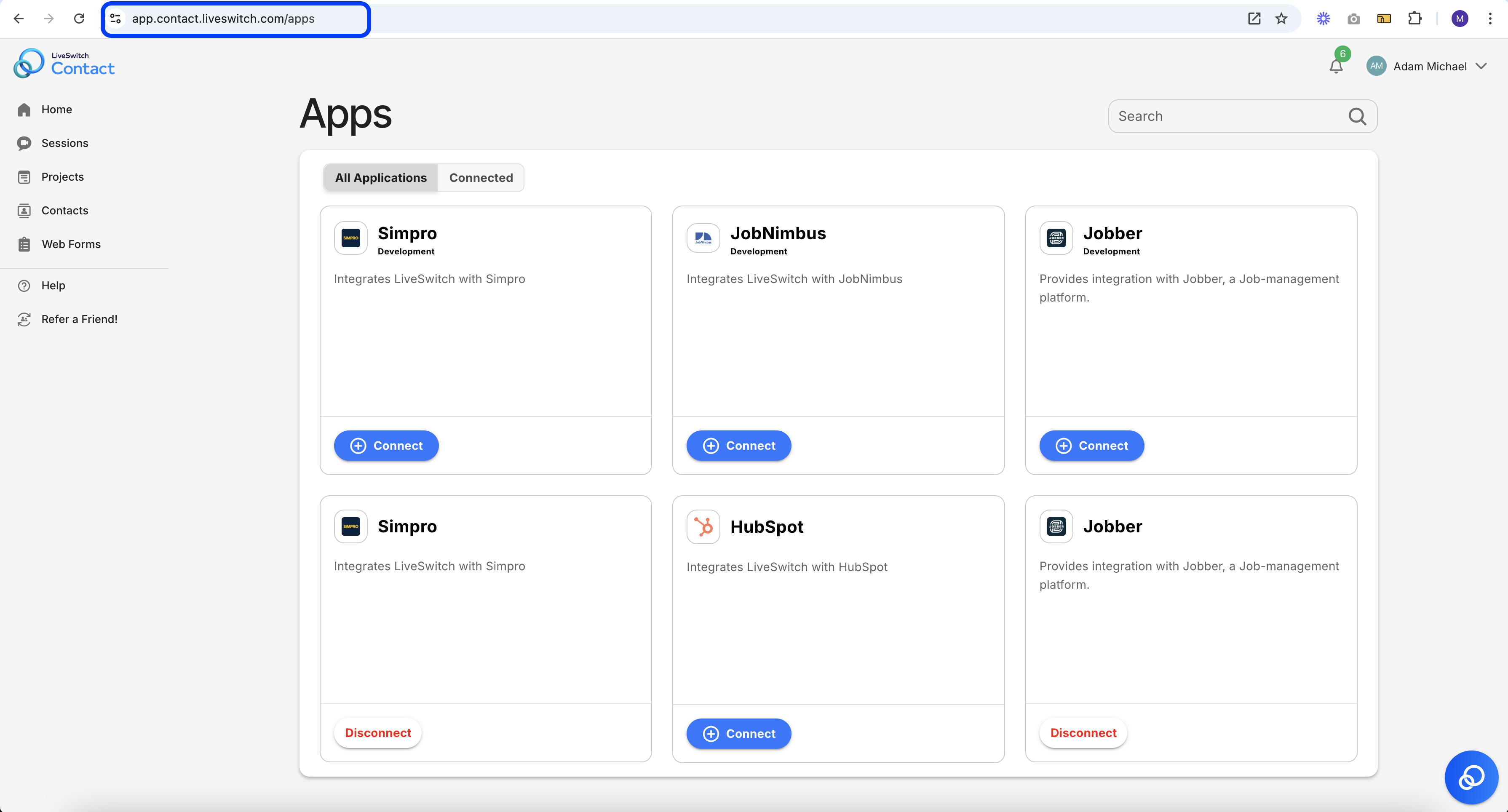
**Step 3: Go to<https://app.contact.liveswitch.com/apps> to access the LiveSwitch app marketplace.**

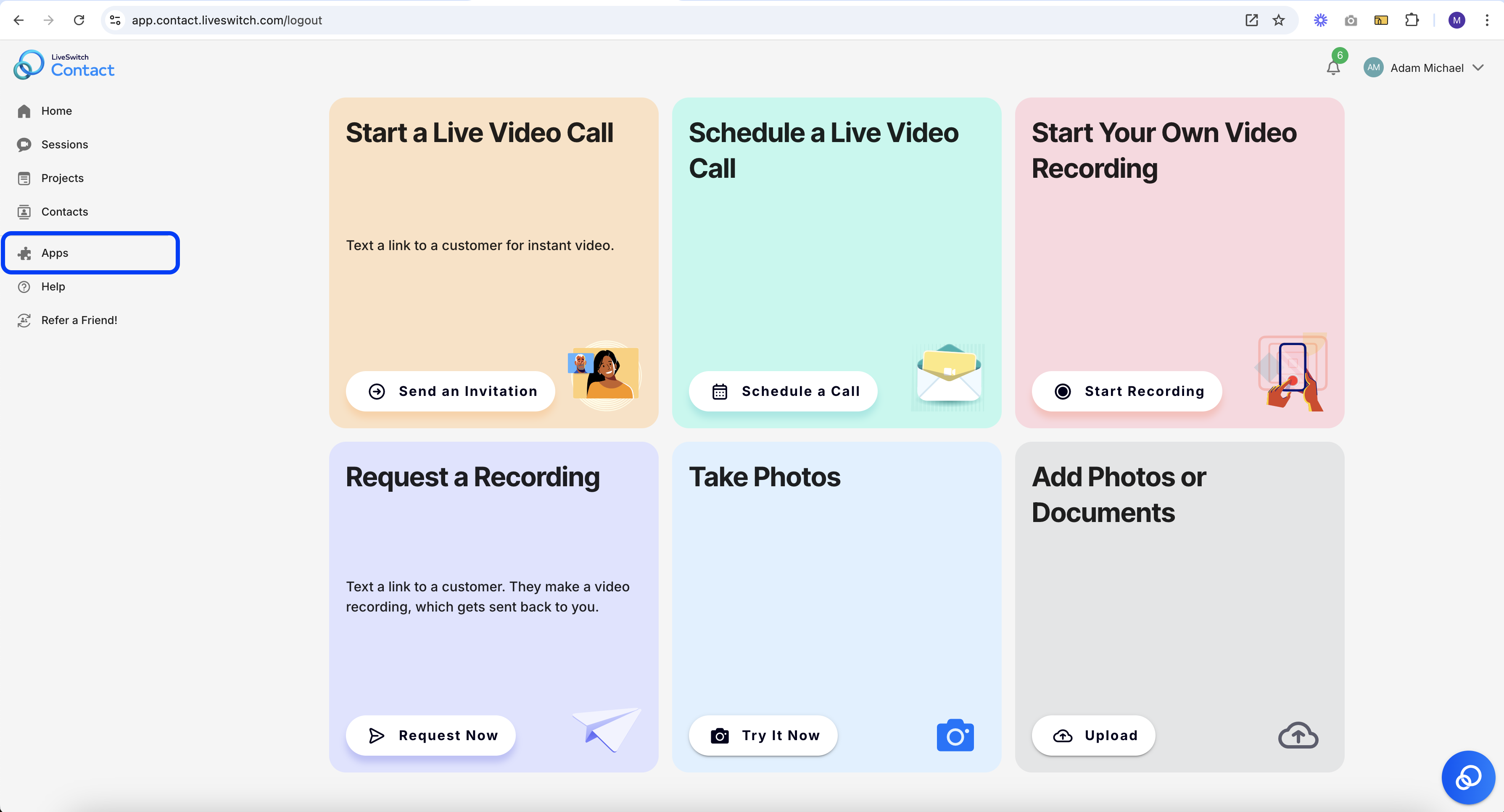
You can access the app marketplace by going directly to that account or selecting the "App" menu item in the left menu bar.

*Access via URL:*
![](https://files.readme.io/02ea4fa58b56f00a3249971b7276eaa819f691293bc302ff76d1b2744c30f708-image.png)

*Access via 'Apps' menu item:*

![](https://files.readme.io/85ca9fb33ecd26e7433022878d518803c303f4a9d3b89135e15b991e3b462c7f-image.png)

**Step 4: Select 'Connect' on the JobNimbus App**

<Image align="center" src="https://files.readme.io/ca9493b805212c328a293d89ee4f7d051a6df653fb7696b97a7d5d26f8dd04a4-Screenshot_2025-03-12_at_9.09.45_AM.png" />

**Step 5: Authorize LiveSwitch to access JobNimbus**

> 🚧 Note: This step may not always be required. If you are not automatically prompted to this screen, please move on to the next step.

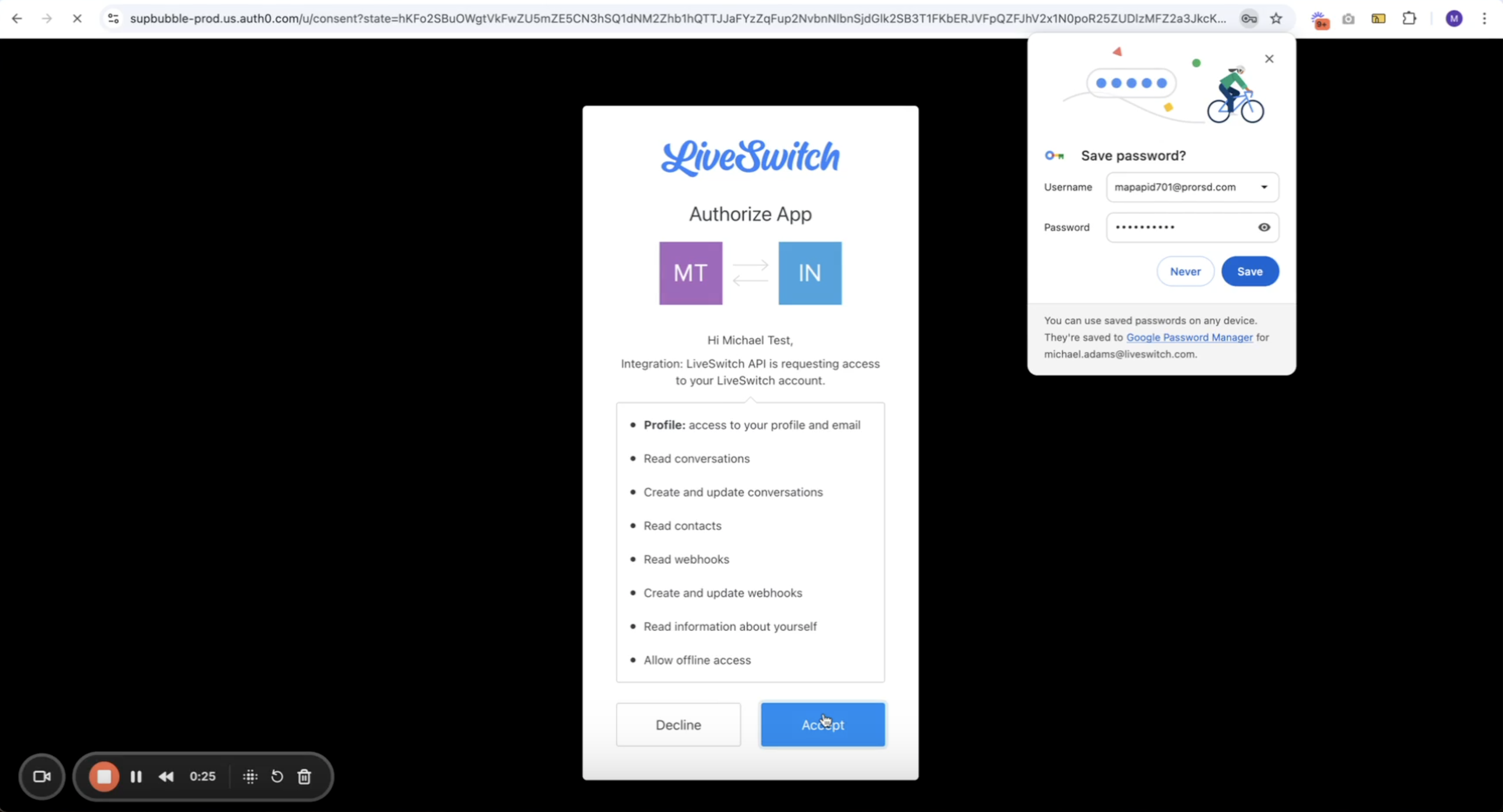
When you select the 'Connect' button, a new tab will automatically open that initiates the authentication process.

First, we will authenticate your LiveSwitch account with the LiveSwitch API. When the screen below appears, select 'Accept' to continue.
![](https://files.readme.io/59b142fa3405230e2d4c58b49e34d89d96f7aa50b0f853cd932816293d0bbd05-image.png)

Second, we will begin the authentication process with JobNimbus. This is where we will add the API Key we created in Step 1. The screen should look like the image below.

<Image align="center" border={true} src="https://files.readme.io/a88b92cbe38f809db6ca49f309e868a8bb7c255122922291b4523af147f9ccc8-Screenshot_2025-10-26_at_6.40.18_PM.png" className="border" />

Once you have entered your API Key, hit "Submit" and we will automatically finish the authentication process.

If you run into any issues, please contact <integrations@liveswitch.com>

# Sibling pages

* [Albi](https://developer.liveswitch.com/docs/albi.md)
* [Builder Prime](https://developer.liveswitch.com/docs/builder-prime.md)
* [Chariot Moving](https://developer.liveswitch.com/docs/chariot-moving.md)
* [Housecall Pro](https://developer.liveswitch.com/docs/housecallpro.md)
* [HubSpot](https://developer.liveswitch.com/docs/hubspot.md)
* [Jobber](https://developer.liveswitch.com/docs/jobber.md)
* [Kickserv](https://developer.liveswitch.com/docs/kickserv.md)
* [MoveItPro](https://developer.liveswitch.com/docs/moveitpro.md)
* [ResponsiBid](https://developer.liveswitch.com/docs/responsibid.md)
* [ServiceMonster](https://developer.liveswitch.com/docs/servicemonster.md)
* [ServiceTitan](https://developer.liveswitch.com/docs/servicetitan.md)
* [Simpro](https://developer.liveswitch.com/docs/simpro.md)
* [Smart Moving](https://developer.liveswitch.com/docs/smart-moving.md)

# What’s Next

* [Install the JobNimbus Integration](https://app.contact.liveswitch.com/apps)