

ServiceMonster
By LiveSwitch
Description
The LiveSwitch integration with ServiceMonster allows LiveSwitch customers who use ServiceMonster to manage accounts and orders to:
- Work directly inside ServiceMonster without switching back to LiveSwitch
- Sync ServiceMonster Accounts and Orders with LiveSwitch Contacts and Projects
- View LiveSwitch photos, recordings, and documents directly inside of ServiceMonster
Install the ServiceMonster Integration
Features & Functionality
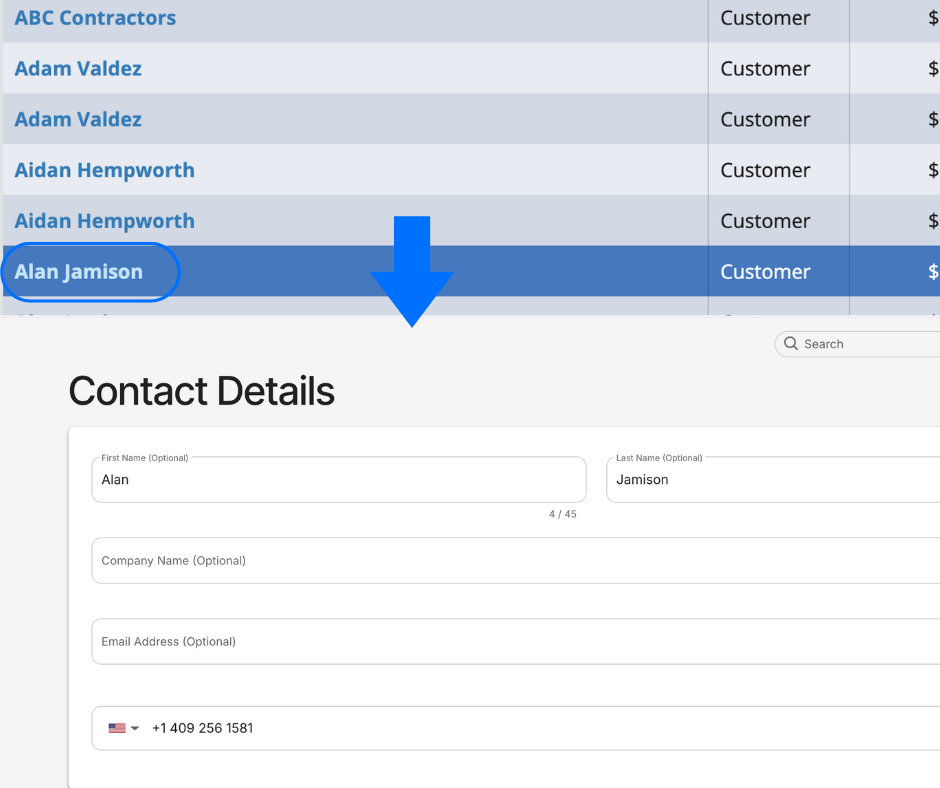
Sync ServiceMonster Accounts with LiveSwitch Contacts
When you create an Account in ServiceMonster, LiveSwitch automatically creates a matching Contact.
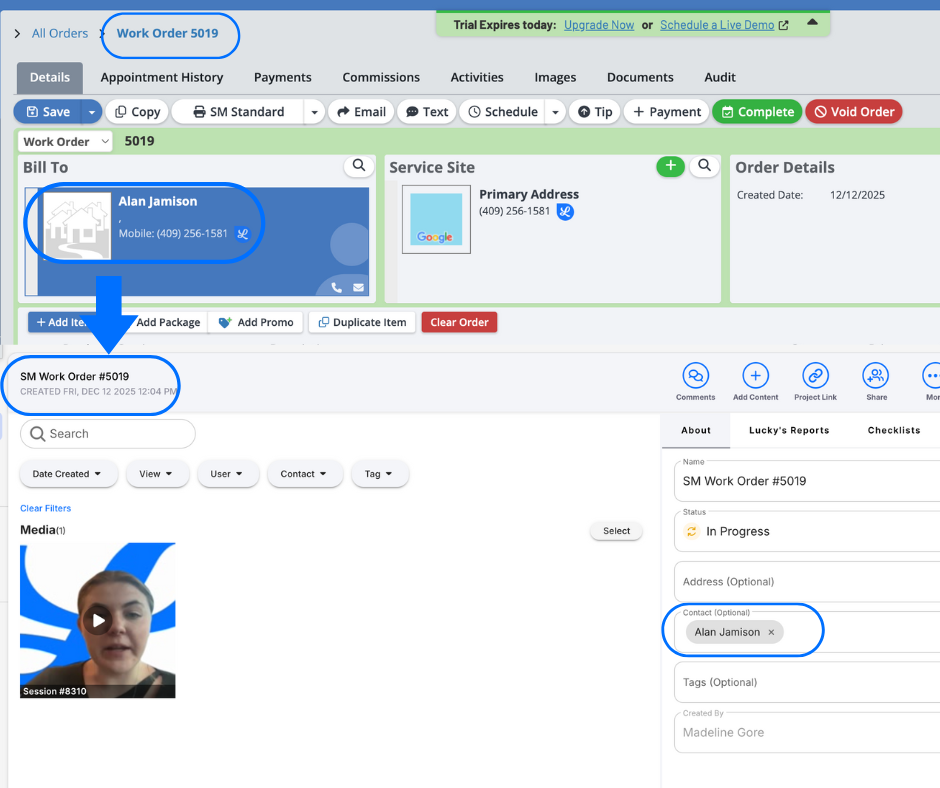
Sync ServiceMonster Orders with LiveSwitch Projects
When an Order is created and saved in ServiceMonster, LiveSwitch automatically creates a Project for that order. Any new recordings, photos, and documents in LiveSwitch stay with the correct Order.
Easy documentation with automatic file syncing
Any recordings, photos, or documents added to a LiveSwitch project linked to a ServiceMonster order will appear in the account’s activity feed.
Flip the Switch
Enhance ServiceMonster integration features and functions with the LiveSwitch Launcher Chrome extension to view media directly in ServiceMonster activity feed notes. Install the Chrome extension
Installation
Step 1: Create an API Key in your ServiceMonster account.
To connect LiveSwitch with ServiceMonster, an admin of your ServiceMonster account will need to create an API Username and Password to enter in the input field in Step 5 below.
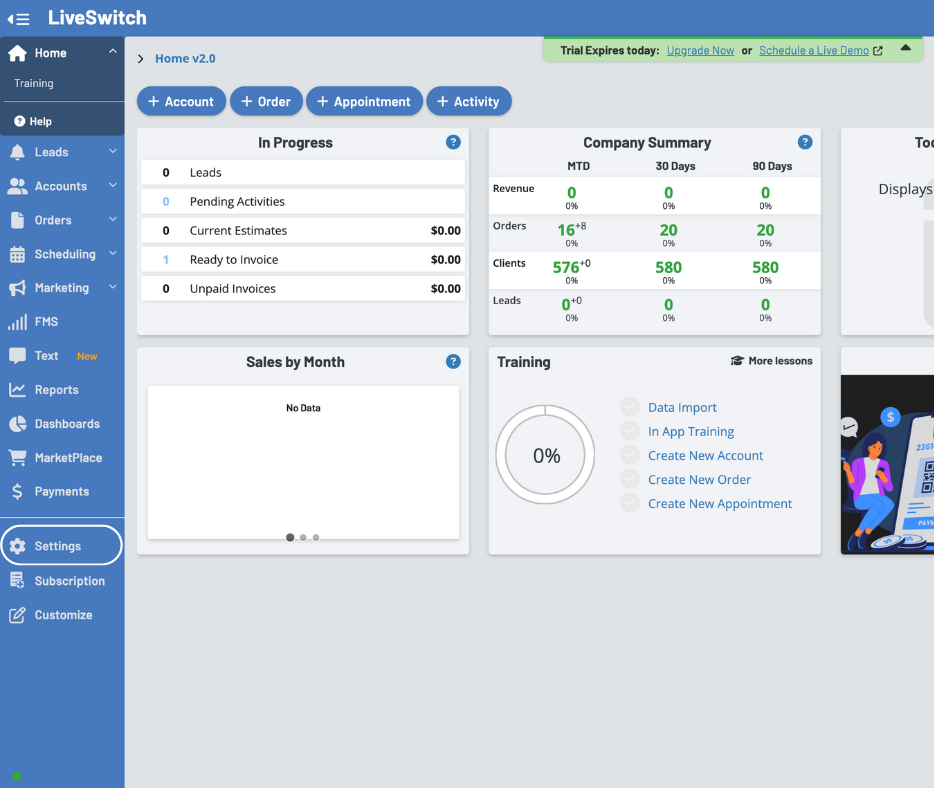
First, go to your ServiceMonster dashboard and select 'Settings' from the dropdown menu.
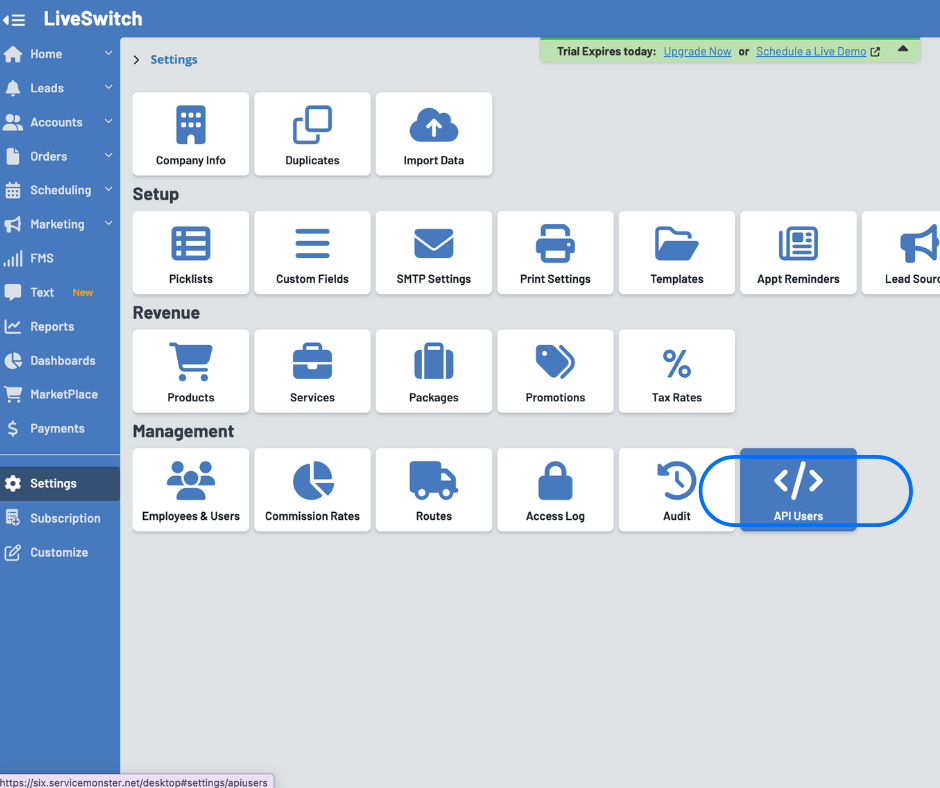
On the following page, select 'API Users.'
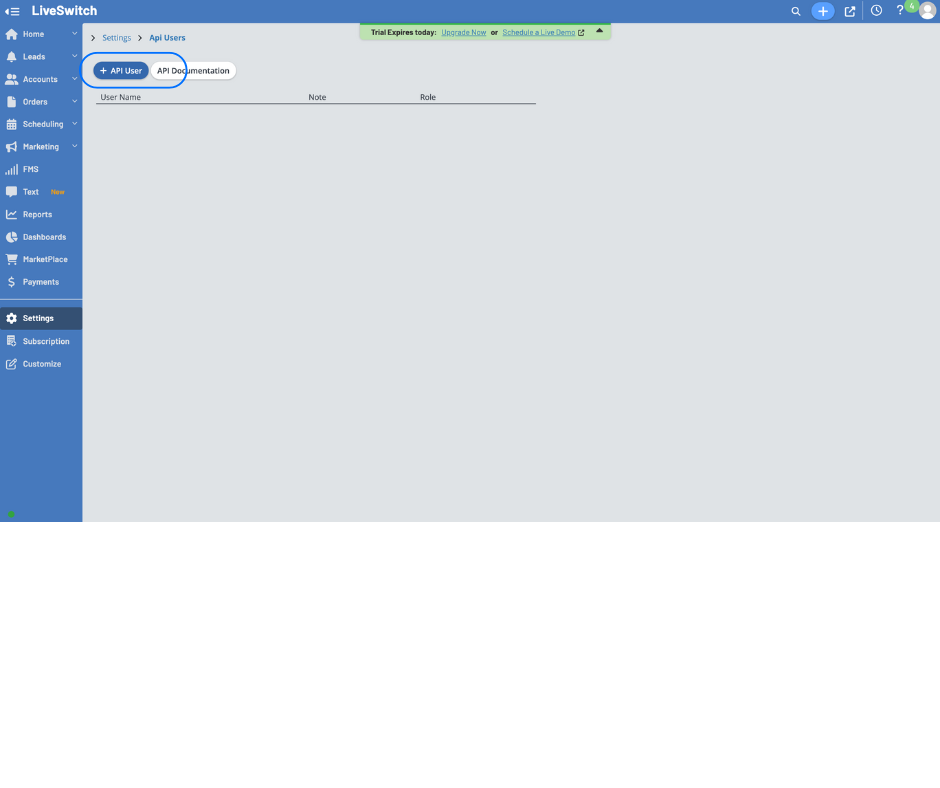
On the API Users page, select the '+ API User' button.
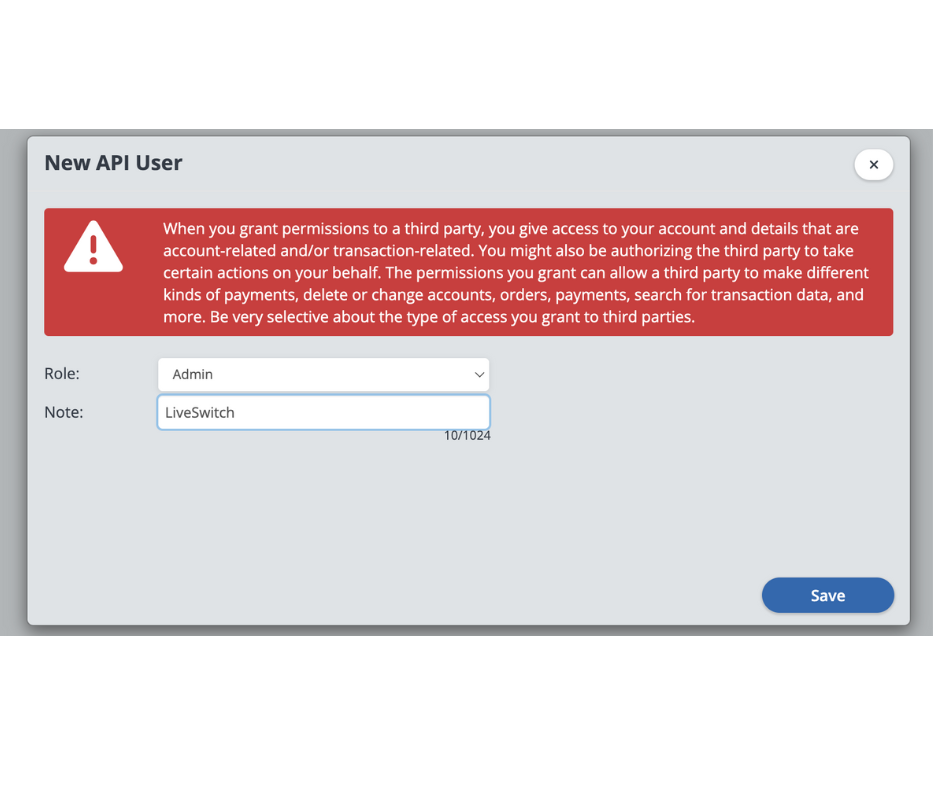
Select 'Admin' in the 'Role' field, type 'LiveSwitch' as a note, and then click save.
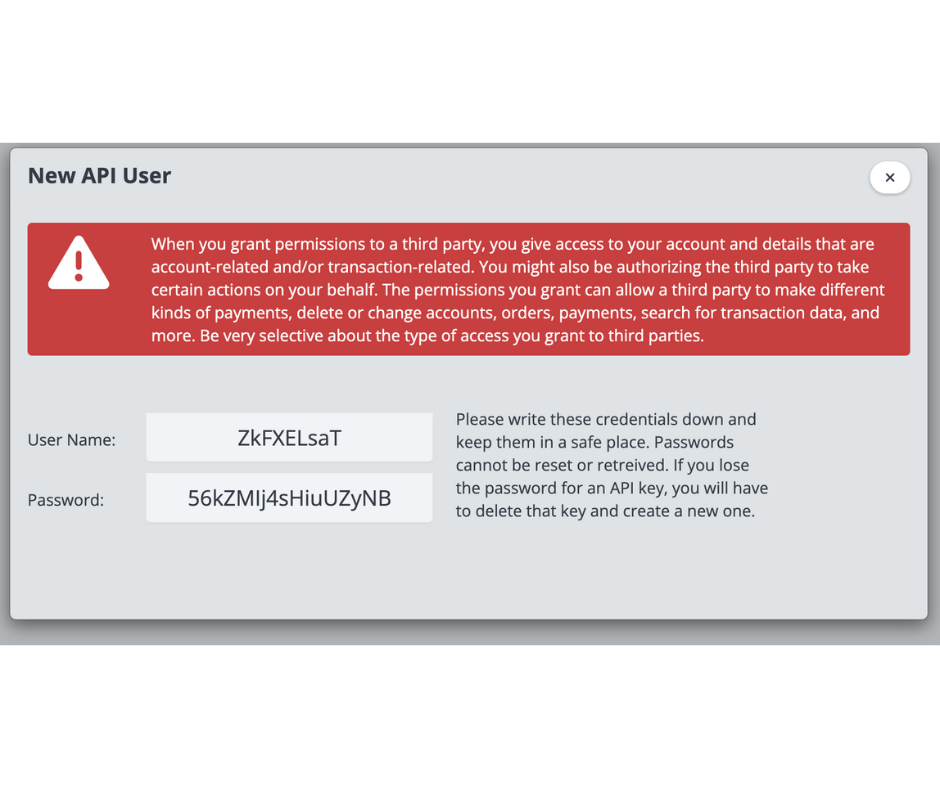
Finally, on the resulting screen, copy the API Username and Password and save it somewhere you can easily access in Step 5 below.
Step 2: Log in to your LiveSwitch account.
If you are not already logged in, go to https://app.contact.liveswitch.com and log in to your LiveSwitch account.
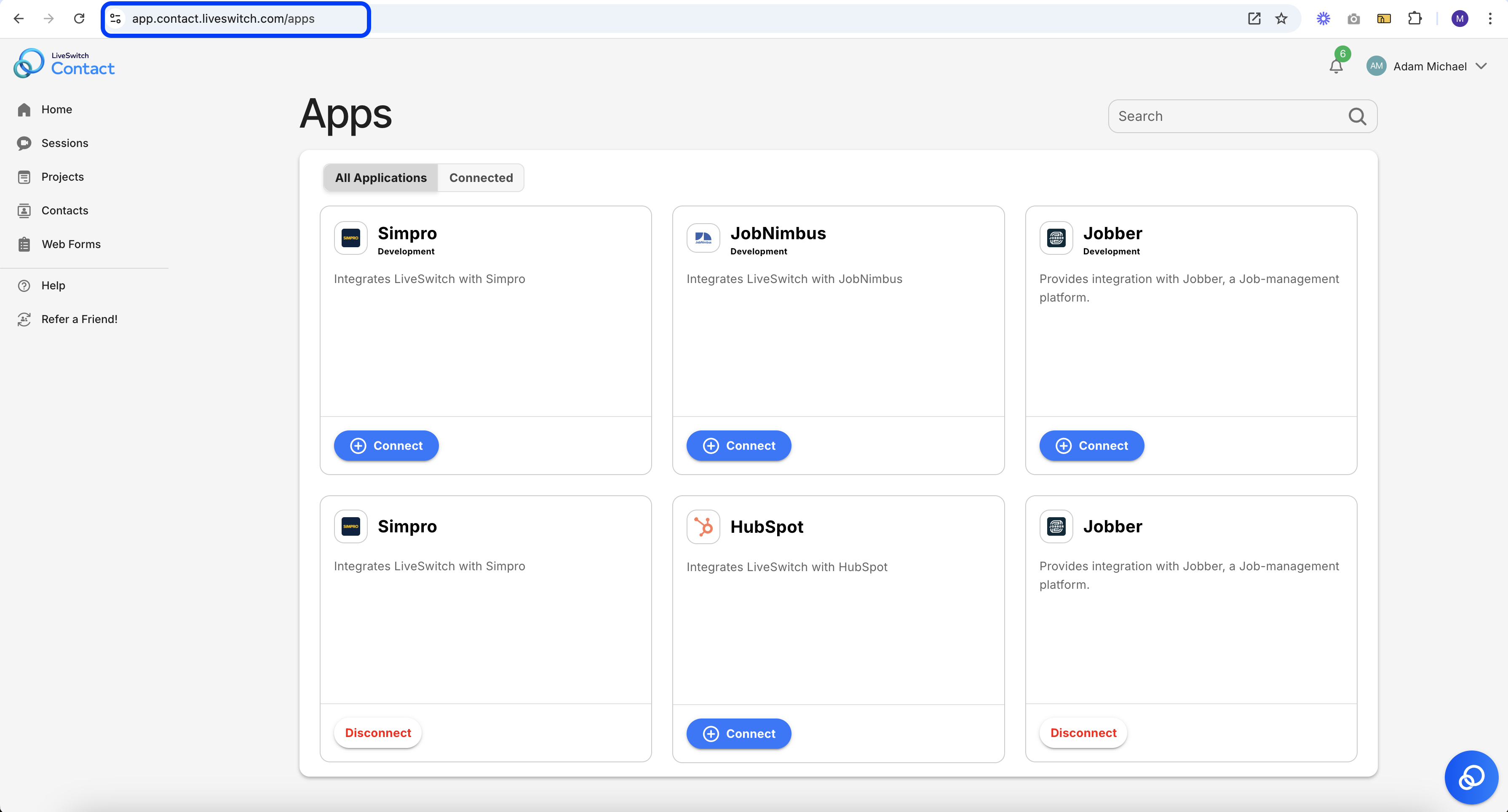
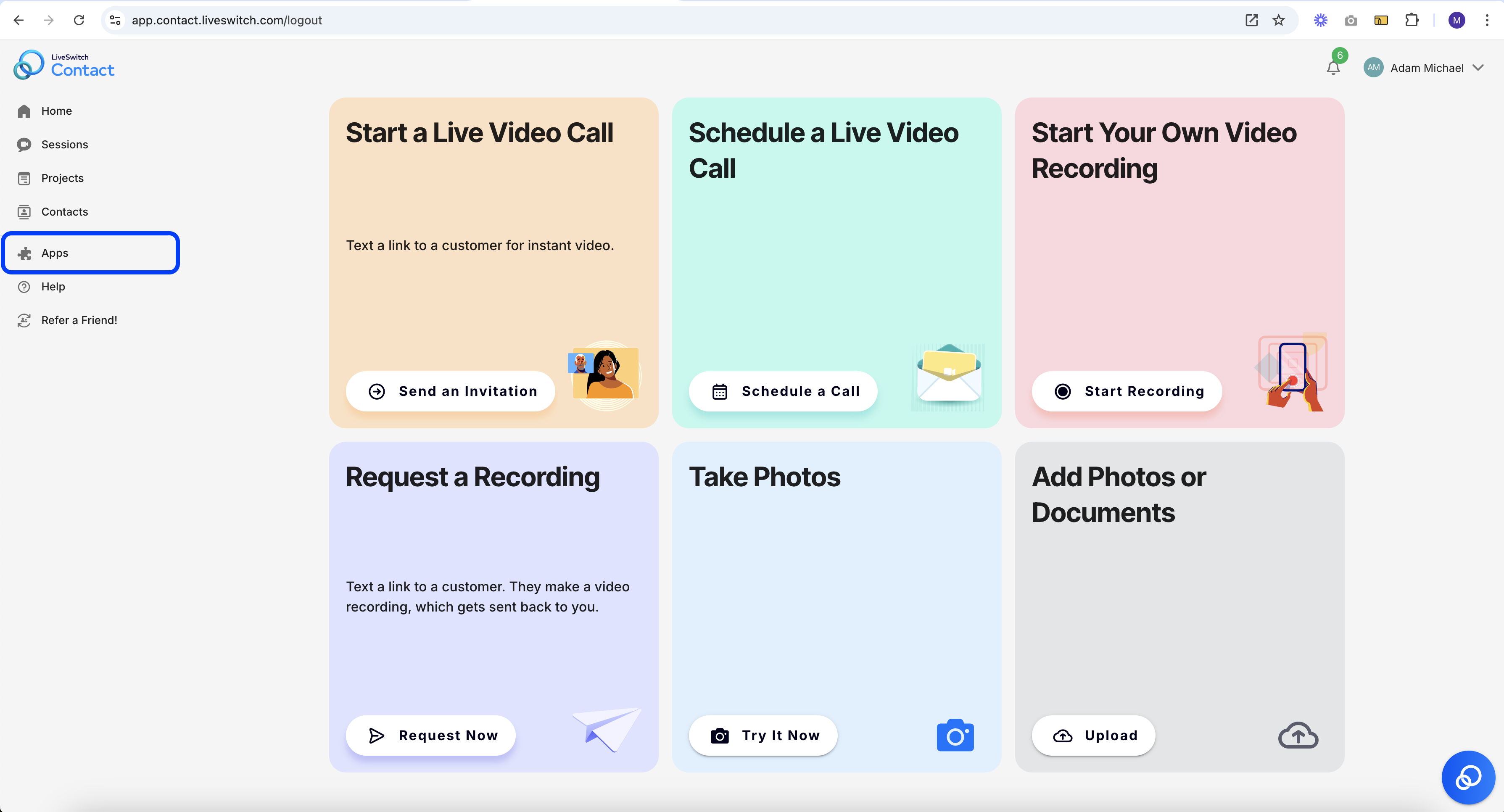
Step 3: Go to https://app.contact.liveswitch.com/apps to access the LiveSwitch app marketplace.
You can access the app marketplace by going directly to that account or selecting the "App" menu item in the left menu bar.
Access via URL:
Access via 'Apps' menu item:
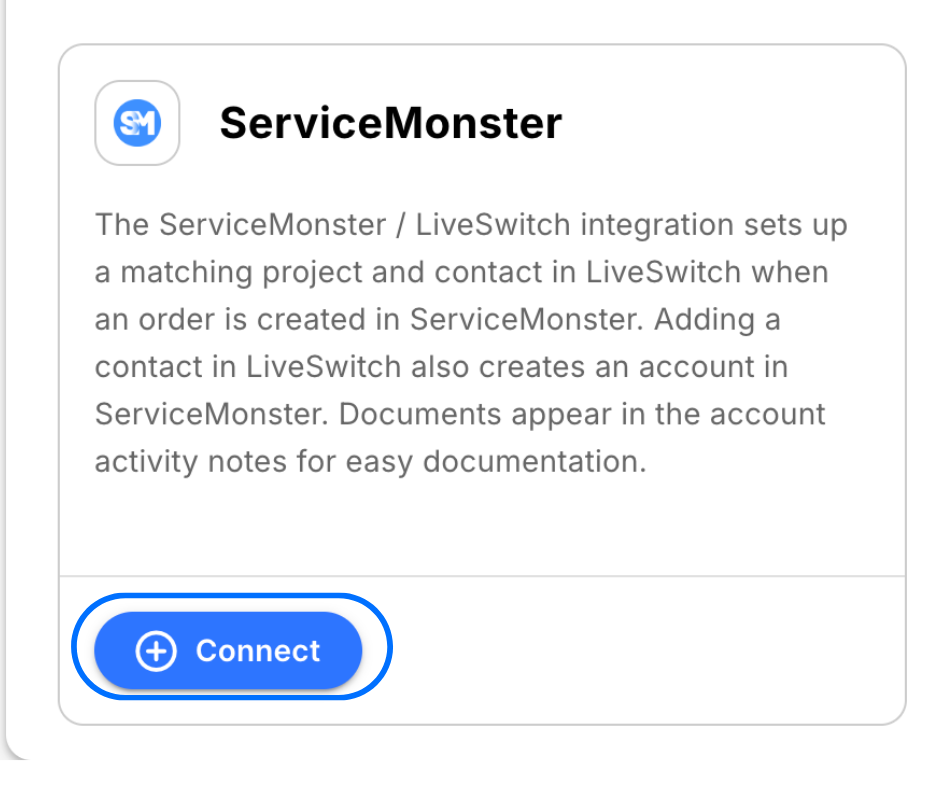
Step 4: Select 'Connect' on the ServiceMonster App
Step 5: Authorize LiveSwitch to access ServiceMonster
Note: This step may not always be required. If you are not automatically prompted to this screen, please move on to the next step.
When you select the 'Connect' button, a new tab will automatically open that initiates the authentication process.
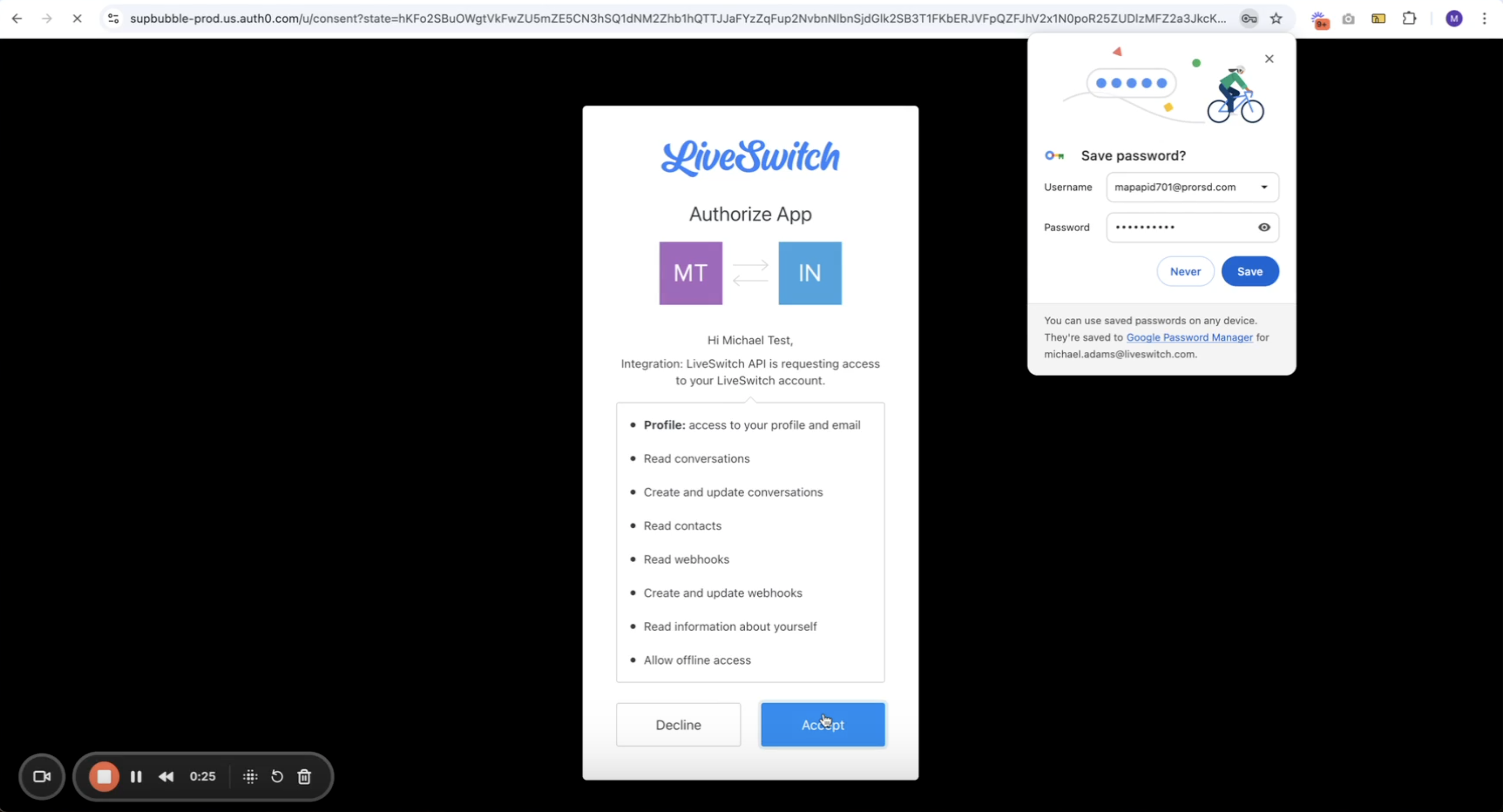
First, we will authenticate your LiveSwitch account with the LiveSwitch API. When the screen below appears, select 'Accept' to continue.
Second, we will begin the authentication process with ServiceMonster. This is where we will add the API Username and Password we created in Step 1. The screen should look like the image below.
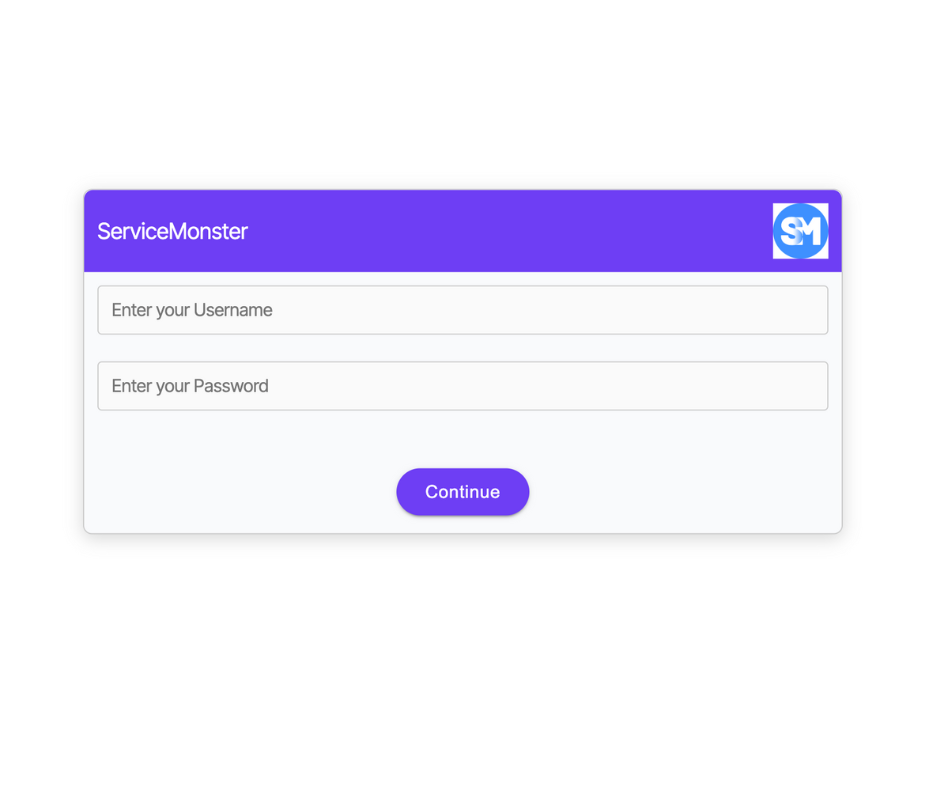
Once you have entered your Username and Password, hit 'Continue' and we will automatically finish the authentication process.
If you run into any issues, please contact [email protected]
Updated 7 months ago